WordPress Security: The Complete Protection Guide

wordpress security
WordPress security is the practice of protecting a WordPress website from unauthorised access, malware injection, data theft, and service disruption. WordPress powers 43% of the internet, making it the most actively targeted CMS by automated attacks, but the vast majority of WordPress compromises are entirely preventable. According to WPScan vulnerability data, 43% of WordPress hacks exploit vulnerabilities in outdated plugins that were not updated promptly. A structured security programme eliminates the primary attack surface.
This guide covers the complete WordPress security framework, why WordPress sites get hacked, the security plugin stack, the hardening checklist every site needs, user account security, database security, HTTPS implementation, brute force protection, malware detection and removal, and the ongoing maintenance programme that keeps protection current. Whether you are securing a new WordPress installation or auditing an existing site after a compromise, this guide gives you the complete framework.

Key Takeaways

  • According to Wordfence, over 4 billion malicious requests are blocked across WordPress sites monthly. WordPress is targeted because of its market share, not because it is inherently insecure. A correctly secured WordPress site is highly resistant to attack.
  • 43% of WordPress compromises exploit outdated plugins, according to WPScan. Weekly updates, applied within 48 hours for security patches, eliminate the primary attack vector responsible for nearly half of all WordPress hacks.
  • Wordfence (free tier) or Sucuri Security provides a Web Application Firewall (WAF) that blocks malicious requests before they reach WordPress, malware scanning, and brute force protection. One of these two plugins is mandatory on every production WordPress site.
  • Two-factor authentication (2FA) on all admin accounts is the single most effective protection against brute force and credential theft attacks. Even if a password is compromised, 2FA prevents unauthorised access.
  • HTTPS with a valid SSL certificate is both a security requirement and a Google ranking signal. All WordPress traffic must be served over HTTPS. HTTP sites display "Not Secure" in Chrome, a direct trust and conversion killer. See our WordPress SEO guide for the full technical context.
  • Daily database backups and weekly full-file backups to offsite cloud storage (not on the same server as the site) are the security safety net that enables recovery from any compromise within minutes. Without offsite backups, a successful attack can result in permanent data loss. See our WordPress maintenance guide.
  • Managed WordPress hosting on Kinsta or WP Engine includes server-level security, isolated containers, automatic malware scanning, and DDoS protection, that shared hosting cannot provide. See our WordPress hosting guide for the comparison.

WordPress Security

Get Your WordPress Site Security Audit and Hardening

Futuristic Marketing Services provides WordPress security audits and hardening, plugin configuration, 2FA setup, firewall implementation, and a monitored maintenance programme.

Request a Security Audit

Why WordPress Sites Get Hacked

Understanding the attack vectors that compromise WordPress sites is the foundation of effective security, you cannot prevent attacks you do not understand. The four primary compromise vectors account for the overwhelming majority of WordPress security incidents.
Attack VectorShare of CompromisesPrevention
Outdated plugins with known vulnerabilities43%Weekly plugin updates; security monitoring alerts for new CVEs; remove unused plugins
Outdated WordPress core26%Enable automatic minor version updates; apply major updates within 1 week of release
Weak or compromised admin passwords16%Strong unique passwords (16+ characters); two-factor authentication; limit login attempts
Outdated or vulnerable themes15%Regular theme updates; remove inactive themes; use themes from reputable sources only

The Automated Attack Reality

The majority of WordPress attacks are automated, bots that continuously scan the internet for sites running known vulnerable plugin versions, weak admin credentials, or common configuration errors. These bots do not target specific websites; they scan millions of sites looking for any that match their attack criteria. This means security is not optional even for small, low-traffic sites, the bots find every site regardless of audience size or commercial importance.

The WordPress Security Stack

A layered security approach, combining hosting-level security, a WordPress security plugin, strong authentication, and regular maintenance, provides defence in depth. If one layer fails, the others continue protecting the site.
Security LayerToolCostWhat It Provides
Firewall and malware scanningWordfence Security or Sucuri SecurityFree (Wordfence Premium from $99/year)Web Application Firewall blocks malicious requests; real-time malware scanner; brute force protection; live traffic monitoring
Two-factor authenticationWP 2FA or Google Authenticator pluginFreeRequires a time-based one-time code in addition to password, prevents account takeover even if password is compromised
Automated backupsUpdraftPlus or hosting backupFree (Premium from £70/year)Daily database and weekly full-file backups to Google Drive, Dropbox, or S3, offsite storage ensures recovery even if server is compromised
SSL and HTTPSHosting provider (Let's Encrypt free)Free via most managed hostsEncrypts all traffic between browser and server; required for Google ranking; prevents data interception
Login protectionLimit Login Attempts ReloadedFreeBlocks IP addresses after configurable failed login attempts; prevents brute force credential attacks
Activity loggingWP Activity LogFree (Premium from £79/year)Records every admin action, plugin installs, post edits, user changes, essential for post-incident forensics

Wordfence Configuration for Maximum Protection
After installing Wordfence, configure: Firewall to Extended Protection mode (after allowing Wordfence to optimise .htaccess); malware scan schedule to daily; email alerts for administrator logins, failed logins, and critical security issues; brute force protection to lock out IP addresses after 5 failed attempts for 30 minutes; and the Live Traffic view to monitor real-time malicious activity. The free tier provides comprehensive protection, Wordfence Premium adds real-time IP reputation blocking from Wordfence Threat Intelligence, which is recommended for high-traffic or high-value sites.

The WordPress Security Hardening Checklist

Essential WordPress Security Hardening

Change default admin username

WordPress historically defaulted to 'admin' as the username, a known target for brute force attacks. Create a new administrator account with a unique username, assign all content to it, then delete the 'admin' account.

Use strong unique passwords

Admin passwords must be minimum 16 characters with mixed case, numbers, and symbols. Use a password manager (1Password, Bitwarden), never reuse passwords across sites. Every admin account must have a unique strong password.

Enable two-factor authentication

Install WP 2FA or Google Authenticator and enforce 2FA on all administrator and editor roles. A compromised password cannot be used to log in without the 2FA device, the most effective single security measure available.

Limit login attempts

Install Limit Login Attempts Reloaded and configure lockout after 5 failed attempts. This prevents brute force attacks that try thousands of password combinations automatically.

Keep everything updated

Update WordPress core, all plugins, and all themes weekly. Apply security patches within 24 to 48 hours of release. Enable automatic minor version updates for WordPress core. Use the WordPress maintenance schedule to manage this systematically.

Remove unused plugins and themes

Every inactive plugin and theme is a potential attack surface, even deactivated plugins can be exploited if they contain vulnerabilities. Delete (not just deactivate) any plugin or theme not actively in use.

Disable XML-RPC if not needed

WordPress XML-RPC endpoint is a common brute force target. If you are not using the WordPress mobile app or Jetpack, disable XML-RPC by adding 'add_filter( xmlrpc_enabled, __return_false );' to functions.php in your child theme.

Implement HTTPS correctly

All traffic must be served over HTTPS. Check for mixed content (HTTP resources on HTTPS pages) using Chrome DevTools Console. Implement HSTS (HTTP Strict Transport Security) header. See our WordPress SEO guide for the technical implementation.

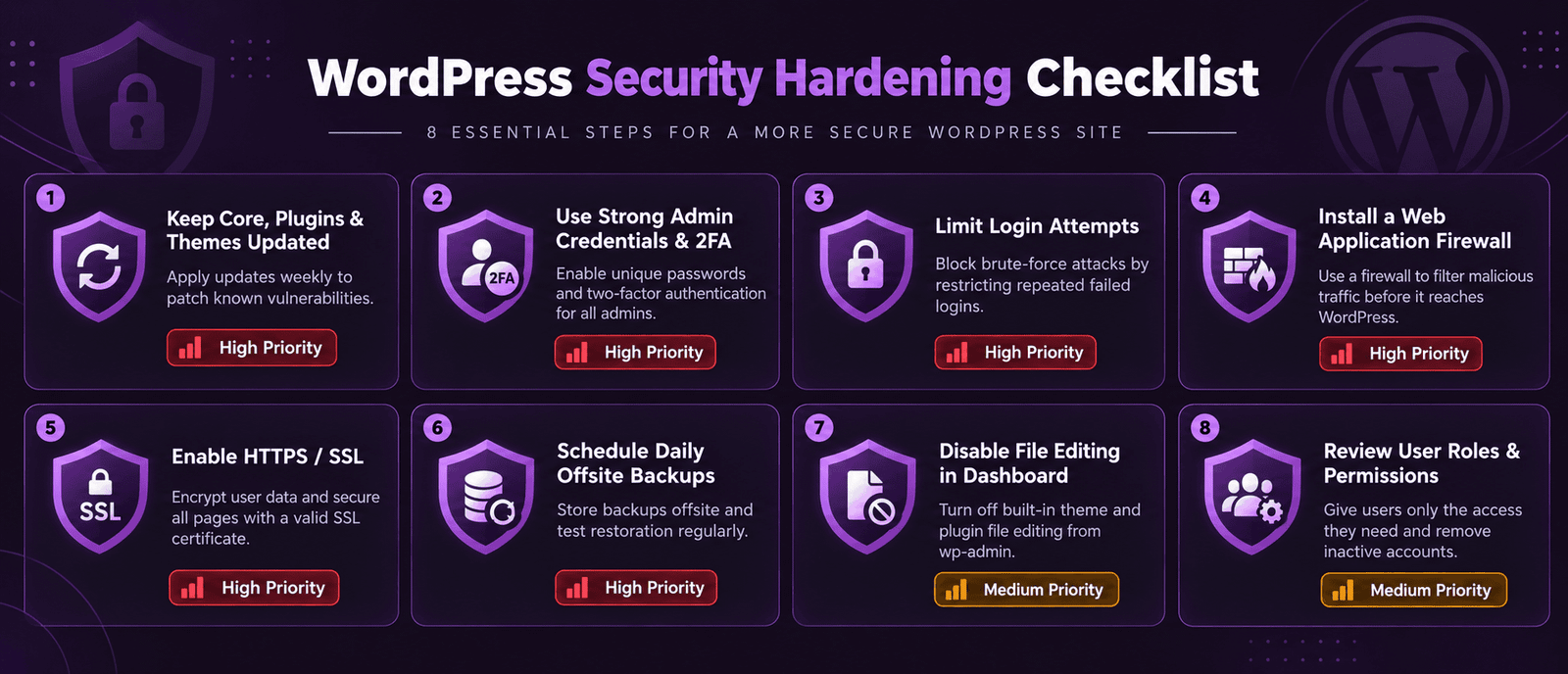
Infographic

WordPress Security Hardening Checklist

Alt text: Eight item WordPress security hardening checklist showing change default admin username, use strong unique passwords minimum 16 characters, enable two-factor authentication on all admin accounts, limit login attempts to block brute force attacks, keep WordPress core plugins and themes updated weekly with security patches within 24 hours, remove unused plugins and themes, disable XML-RPC if not in use, and implement HTTPS with HSTS header, with priority rating for each item

WordPress Database Security

The WordPress database contains all site content, user credentials (hashed), plugin settings, and potentially sensitive customer data. Database security is a frequently overlooked layer that requires specific attention during initial setup.
Database Security PracticeHow to ImplementWhy It Matters
Change the default table prefixSet a custom table prefix (e.g. wp_abc123_) in wp-config.php during installation or using a plugin post-installationDefault wp_ prefix makes SQL injection attacks easier, changing it adds a layer of obscurity
Restrict database user permissionsGrant the WordPress database user only SELECT, INSERT, UPDATE, DELETE, CREATE, DROP, INDEX, ALTER, not GRANT or SUPERPrinciple of least privilege, a compromised WordPress installation cannot create new database users
Regular database backupsUpdraftPlus daily database backup to Google Drive or S3, separate from file backupsDatabase contains all content and user data, it is the most critical backup target
Protect wp-config.phpAdd 'deny from all' rule for wp-config.php in .htaccess or move it one directory above the web rootwp-config.php contains database credentials, it must not be publicly accessible

WordPress Security Programme

Ongoing Security Monitoring and Maintenance for WordPress Sites

Futuristic Marketing Services provides monthly WordPress maintenance and security monitoring, updates, backups, firewall management, and malware scanning to keep your site protected.

Start Your Security Programme

Frequently Asked Questions About WordPress Security

Q. Is WordPress secure?

A. style="color:rgba(255,255,255,0.85);font-size:15px;line-height:1.8;">WordPress core is regularly audited by a dedicated security team and is fundamentally secure when correctly maintained. The security risk comes from: outdated plugins with known vulnerabilities (43% of compromises), weak admin credentials (16%), outdated themes (15%), and outdated WordPress core (26%), according to WPScan. A WordPress site that is kept updated, uses strong credentials with 2FA, has a security plugin (Wordfence or Sucuri) installed, and is hosted on managed infrastructure is highly resistant to attack.

Q. What is the best WordPress security plugin?

A. style="color:rgba(255,255,255,0.85);font-size:15px;line-height:1.8;">Wordfence Security is the most widely used WordPress security plugin, its free tier includes a Web Application Firewall, malware scanner, brute force protection, and live traffic monitoring. Sucuri Security is the alternative for sites needing a cloud-based WAF (Sucuri Premium routes traffic through their network before it reaches the server, a stronger firewall model). For most sites, Wordfence free tier provides comprehensive protection. Both are significantly better than no security plugin, install one immediately on every production WordPress site.

Q. How do I know if my WordPress site has been hacked?

A. style="color:rgba(255,255,255,0.85);font-size:15px;line-height:1.8;">Signs of a WordPress compromise: unexpected admin users appearing in Users list; unfamiliar files in the wp-content directory; Google Search Console warnings about malware or deceptive content; antivirus warnings when visitors access the site; unexpected redirects to unknown sites; server resource usage spiking without traffic increase; Wordfence scan identifying modified core files or unknown files. If any of these occur, run a full Wordfence or Sucuri malware scan immediately and check the WPScan vulnerability database for recent CVEs affecting your installed plugins.

Q. How do I clean a hacked WordPress site?

A. style="color:rgba(255,255,255,0.85);font-size:15px;line-height:1.8;">Cleaning a hacked WordPress site: (1) Put the site in maintenance mode to prevent further damage. (2) Run a full malware scan with Wordfence or Sucuri and remove identified malicious files. (3) Replace all WordPress core files with fresh downloads from WordPress.org. (4) Replace all plugin files with fresh downloads from the plugin authors. (5) Check all admin user accounts and remove any unauthorised accounts. (6) Reset all admin passwords. (7) Identify the vulnerability that allowed the compromise (usually an outdated plugin, update everything). (8) Restore from a clean backup if available. (9) Request a Google malware review if the site was flagged.

Q. Do I need SSL for my WordPress site?

A. style="color:rgba(255,255,255,0.85);font-size:15px;line-height:1.8;">Yes, HTTPS with a valid SSL certificate is mandatory for all production WordPress sites. Google Chrome marks HTTP sites as "Not Secure", directly reducing visitor trust and conversion rate. HTTPS is a confirmed Google ranking signal, HTTP sites rank lower than HTTPS equivalents. Most managed WordPress hosts include a free Let's Encrypt SSL certificate. After installing SSL, ensure all HTTP URLs redirect to HTTPS and that no mixed content (HTTP resources on HTTPS pages) remains. Configure WordPress URL to use HTTPS in Settings, General. See our WordPress hosting guide for SSL setup by hosting provider.

Q. How often should I update WordPress plugins?

A. style="color:rgba(255,255,255,0.85);font-size:15px;line-height:1.8;">Update WordPress plugins weekly as part of a structured maintenance programme. Security patches, updates that fix known vulnerabilities, should be applied within 24 to 48 hours of release. Subscribe to security notification services (WPScan or Wordfence email alerts) to receive immediate notification of new CVEs affecting your installed plugins. Enable automatic updates for plugins from trusted authors where the plugin developer supports it, Rank Math, Yoast, and WP Rocket all support automatic updates.

Q. What is two-factor authentication and do I need it for WordPress?

A. style="color:rgba(255,255,255,0.85);font-size:15px;line-height:1.8;">Two-factor authentication (2FA) requires a second verification factor, typically a time-based one-time code from a mobile app (Google Authenticator, Authy), in addition to the username and password. Even if an admin password is compromised, an attacker cannot log in without the physical device generating the 2FA code. 2FA is mandatory for all WordPress administrator accounts on any production site. Install the WP 2FA plugin (free), configure it for all admin and editor roles, and scan existing admin accounts to enforce enrolment.

Q. Should I disable WordPress XML-RPC?

A. style="color:rgba(255,255,255,0.85);font-size:15px;line-height:1.8;">XML-RPC is a WordPress API that enables remote publishing and the WordPress mobile app. It is also a common brute force attack target, attackers can make thousands of login attempts in a single XML-RPC request, bypassing IP-based rate limiting. If you are not using the WordPress mobile app or the Jetpack plugin (which requires XML-RPC), disable it by adding add_filter( 'xmlrpc_enabled', '__return_false' ); to your child theme functions.php. The Wordfence plugin also provides an option to block all XML-RPC traffic.

Q. How do I protect my WordPress login page?

A. style="color:rgba(255,255,255,0.85);font-size:15px;line-height:1.8;">WordPress login page protection: install Limit Login Attempts Reloaded to block IP addresses after 5 failed attempts; enable two-factor authentication via WP 2FA; change the default admin username from admin to a unique value; install Wordfence which blocks known malicious IPs at the firewall level before they reach the login page; consider moving the login URL from the default /wp-admin/ or /wp-login.php using a plugin like WPS Hide Login (security through obscurity, not a primary measure but reduces automated scan traffic). Never rely on a single protection measure, defence in depth is required.

Q. What are the most important WordPress security settings?

A. style="color:rgba(255,255,255,0.85);font-size:15px;line-height:1.8;">Most important WordPress security configuration: (1) Change default admin username. (2) Enable 2FA on all admin accounts. (3) Install and configure Wordfence Security with Extended Protection firewall. (4) Install UpdraftPlus with daily database and weekly full-file offsite backups. (5) Implement HTTPS and force all traffic to HTTPS. (6) Set weekly plugin and theme update schedule. (7) Remove all unused plugins and themes. (8) Restrict file editing by adding define("DISALLOW_FILE_EDIT", true); to wp-config.php, prevents admin-panel file editing if an account is compromised. This configuration takes 2 to 3 hours and dramatically reduces security risk.

Q. Is managed WordPress hosting more secure?

A. style="color:rgba(255,255,255,0.85);font-size:15px;line-height:1.8;">Yes, significantly. Managed WordPress hosting on Kinsta or WP Engine provides server-level security that shared hosting cannot: isolated containers (your site cannot be affected by compromises on other sites on the server); automatic malware scanning; DDoS protection at the network level; automatic WordPress core updates; and server-side firewalls. Shared hosting puts multiple sites on one server without isolation, a compromise of any site can affect neighbouring sites. For any production WordPress site handling customer data or commercial transactions, managed hosting is the minimum viable infrastructure. See our WordPress hosting guide.

Q. What should I do immediately after a WordPress hack?

A. style="color:rgba(255,255,255,0.85);font-size:15px;line-height:1.8;">Immediate post-hack actions: (1) Change all admin passwords immediately from a clean device. (2) Enable maintenance mode to prevent visitors landing on a compromised site. (3) Contact your hosting provider, they can isolate the site and provide server-level forensics. (4) Run a full Wordfence or Sucuri malware scan and remove all identified threats. (5) Restore from the most recent clean backup if available, this is faster and more reliable than manual cleanup. (6) Update every plugin, theme, and WordPress core to current versions. (7) Request Google malware review in Search Console if the site was flagged. Document the timeline and report to your data protection officer if customer data was involved.

Futuristic Marketing Services

WordPress Security That Protects Your Business Asset

Futuristic Marketing Services provides WordPress security hardening and ongoing monitored maintenance, weekly updates, daily backups, firewall configuration, and malware scanning, for businesses that cannot afford site downtime or data loss.

Secure Your WordPress Site


Conclusion: WordPress Security Is an Ongoing Programme, Not a One-Time Task

WordPress security is not a configuration you set and forget, it is an ongoing programme that requires weekly updates, daily backups, regular scans, and active monitoring. The attack landscape evolves continuously; new plugin vulnerabilities are disclosed weekly; new attack techniques emerge regularly. A security configuration that was comprehensive 6 months ago may have gaps today if it has not been maintained.
The businesses that experience serious WordPress security incidents are almost never those who were specifically targeted, they are those whose sites had known vulnerabilities from outdated software, weak credentials, or absent monitoring that automated bots found and exploited. The good news: a structured maintenance programme, updates, backups, firewall, 2FA, prevents the overwhelming majority of incidents before they occur. See our WordPress maintenance guide for the complete ongoing programme framework.
For the hosting infrastructure that provides server-level security as a foundation, see our WordPress hosting guide. For the complete WordPress development context, see our WordPress development guide. To discuss a security audit or monitored maintenance programme for your site, contact our team.
Share this post :
Picture of Devyansh Tripathi
Devyansh Tripathi

Devyansh Tripathi is a digital marketing strategist with over 5 years of hands-on experience in helping brands achieve growth through tailored, data-driven marketing solutions. With a deep understanding of SEO, content strategy, and social media dynamics, Devyansh specializes in creating results-oriented campaigns that drive both brand awareness and conversion.

All Posts